How to recolor images with a custom color palette in Plnty

- Use cases
- Image
- Art direction
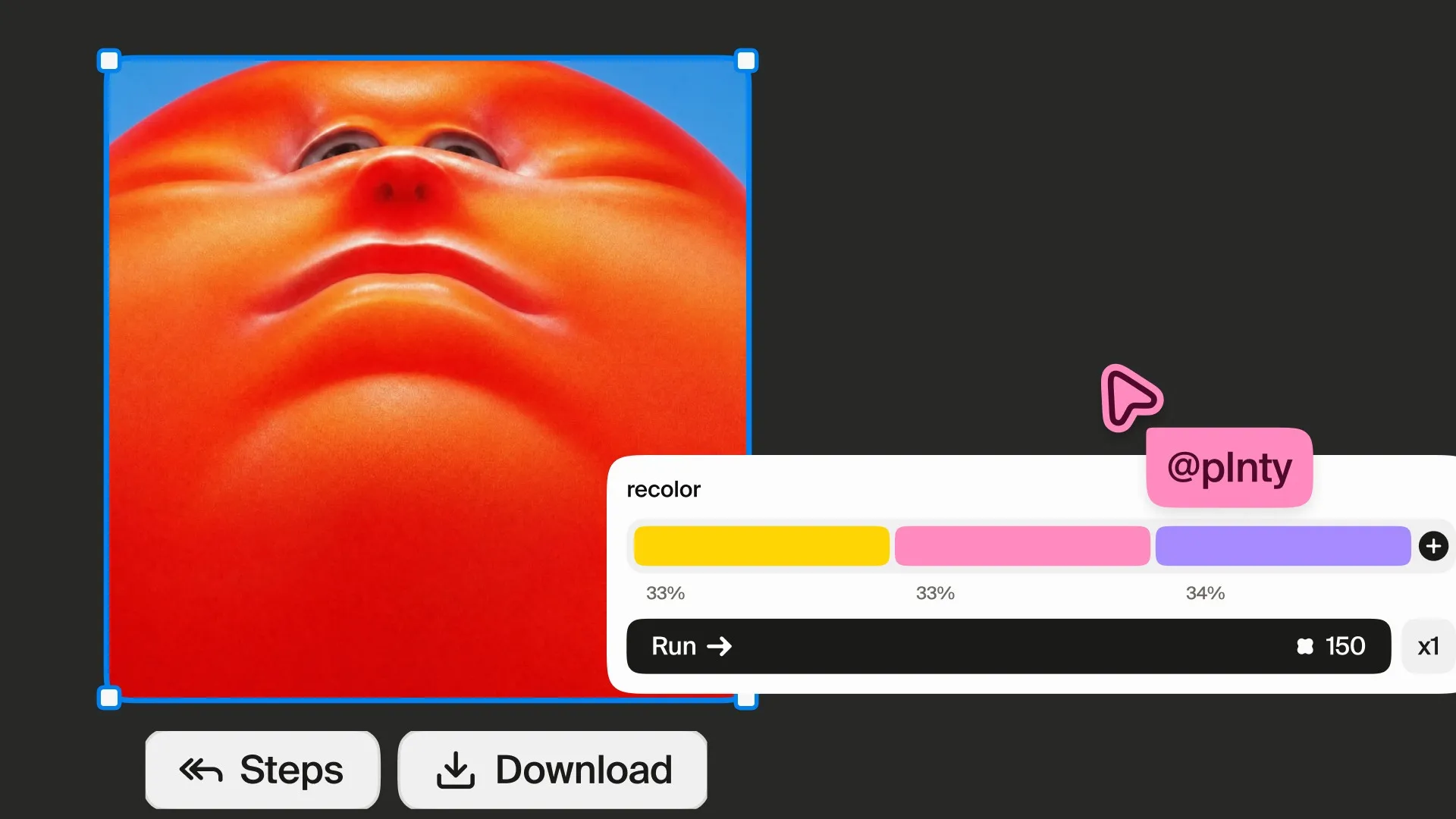
To recolor an image in Plnty, add it to Recolor, create or choose a color palette, and select General, Portrait or Object mode. Label palette colors when you want to direct a particular part of the image, then compare the generated result with your original. Keep the palette on the canvas to reuse it in tools that support palette input.
Start with a color decision
A different palette can change the feeling of an image before you change its subject. A pale object can become a terracotta study; a portrait can move toward green, violet and orange. Decide what you want the color change to do before building the palette.
Start with an image you can use and one clear goal: separate the subject from its background, explore a different mood, or bring several images toward a shared palette. Keep the original nearby so you can judge more than color alone.
01 / Palette
Create a palette manually or from a prompt
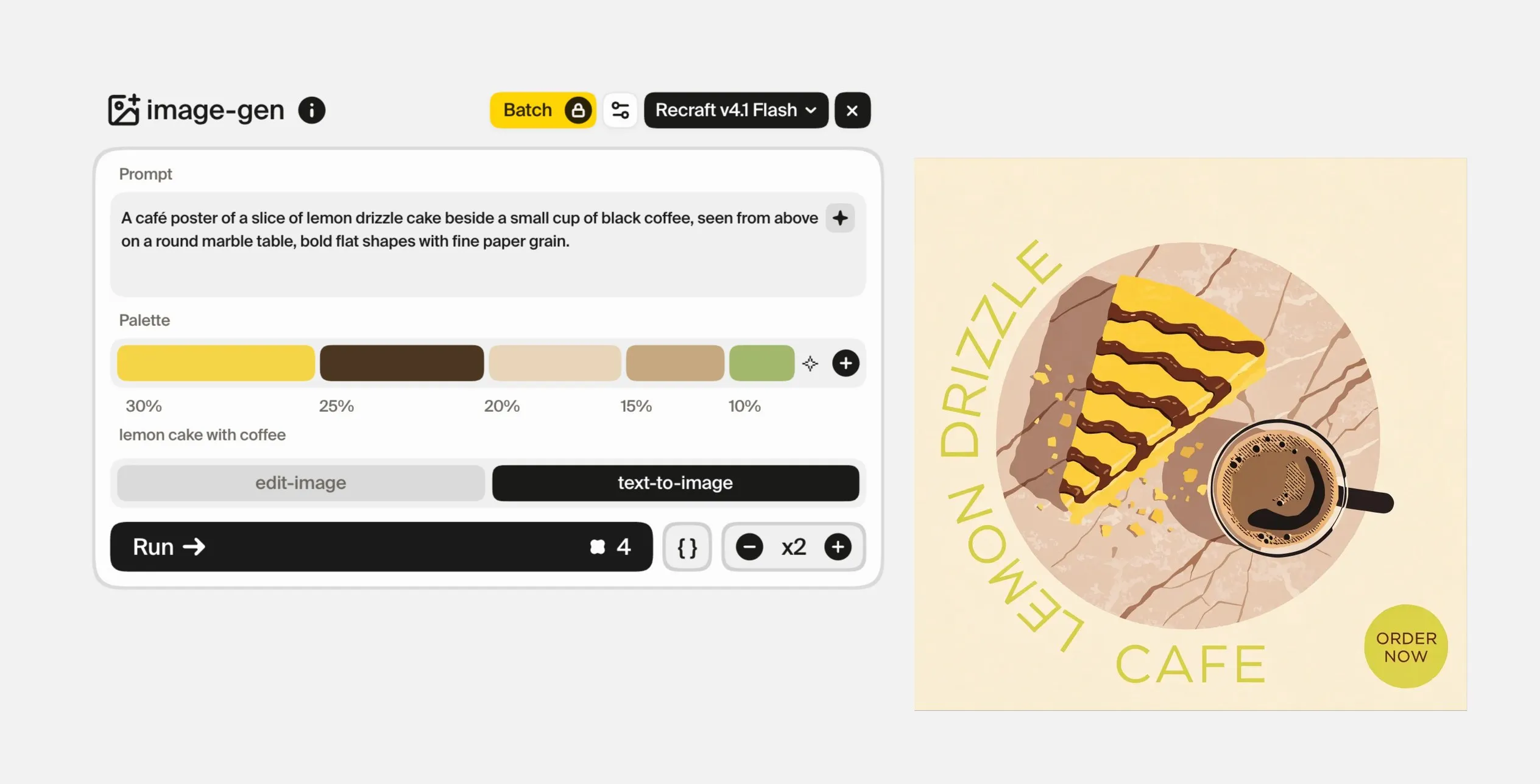
Add a palette element from the canvas toolbar. Choose colors manually when you already have a direction, or describe a color idea to generate a starting palette. A prompt such as “lemon cake with coffee” provides a concrete theme to explore.
You can keep adjusting the generated palette. Adjust the swatches before using it, and keep a copy on the canvas beside your source image. That gives you a visible reference for later experiments.
02 / Mode
Choose a mode and name the color roles
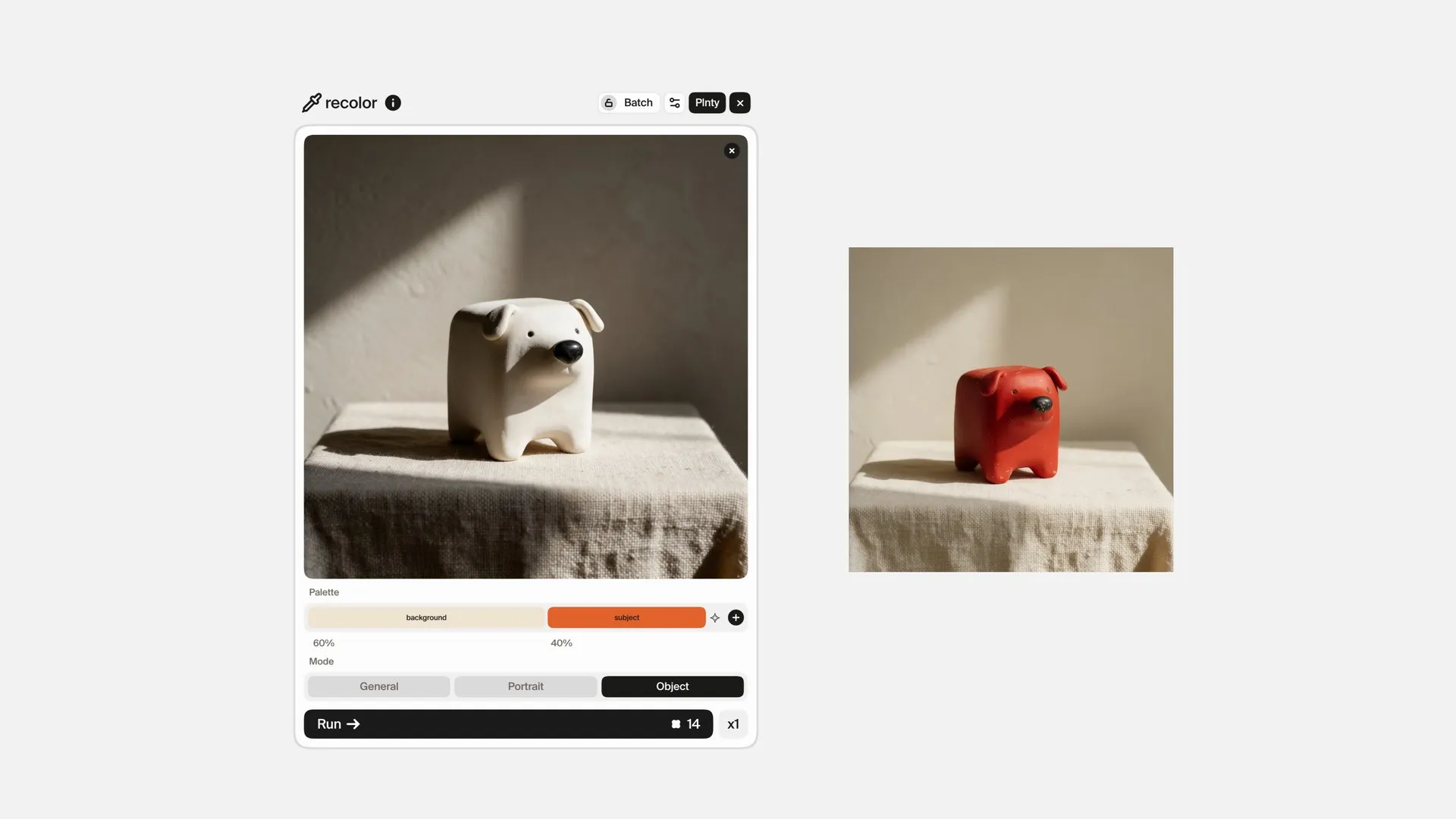
Open Recolor, add your image and supply the palette. The tool offers General, Portrait and Object modes. Choose the mode that matches the image you are working on; the object example uses Object, and the portrait example uses Portrait.
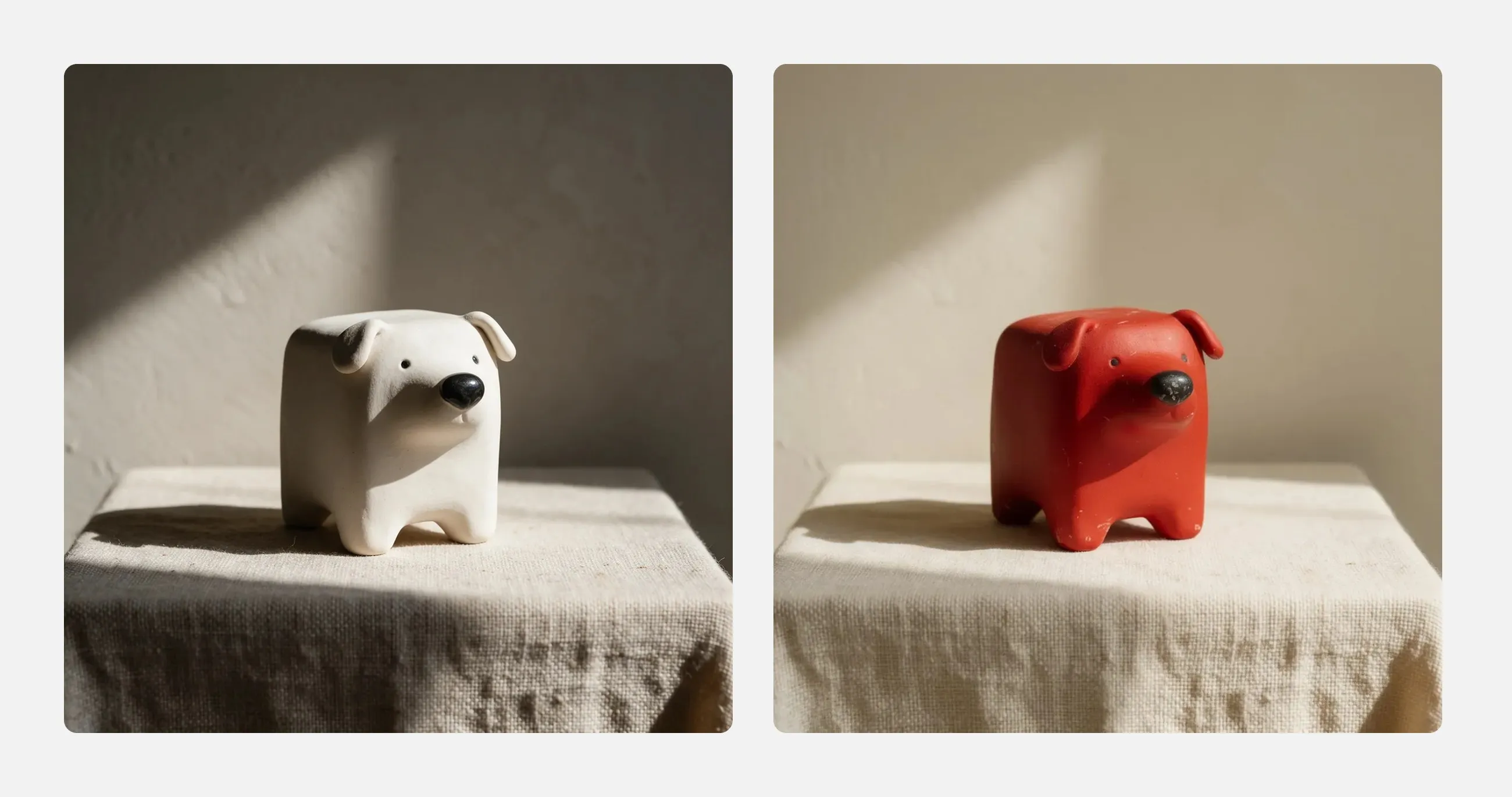
When a color needs to go somewhere specific, give its swatch a descriptive name: double-click a swatch to name it, click it to change its color. In the ceramic dog example, a two-colour palette assigns a pale sand to “background” and orange to “subject.” The dog turns terracotta while the linen and the wall keep their pale, sunlit look.
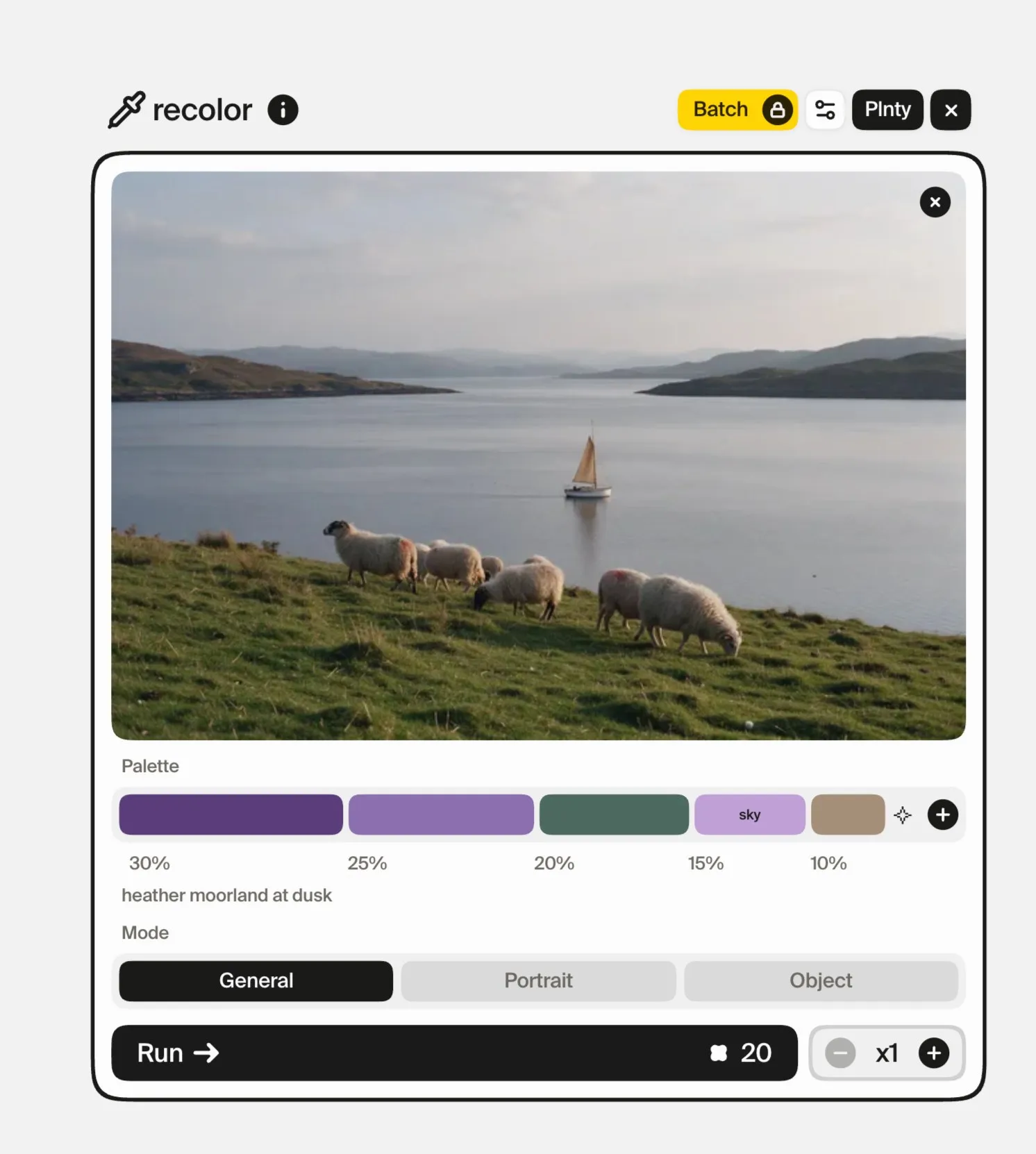
For a landscape, labels such as “sky” and “grass” can express a more specific direction. These labels guide generation; they are not pixel masks. Compare the result with the original to see where the colors went and what else changed.
03 / Compare
Compare portrait treatments, then refine one choice
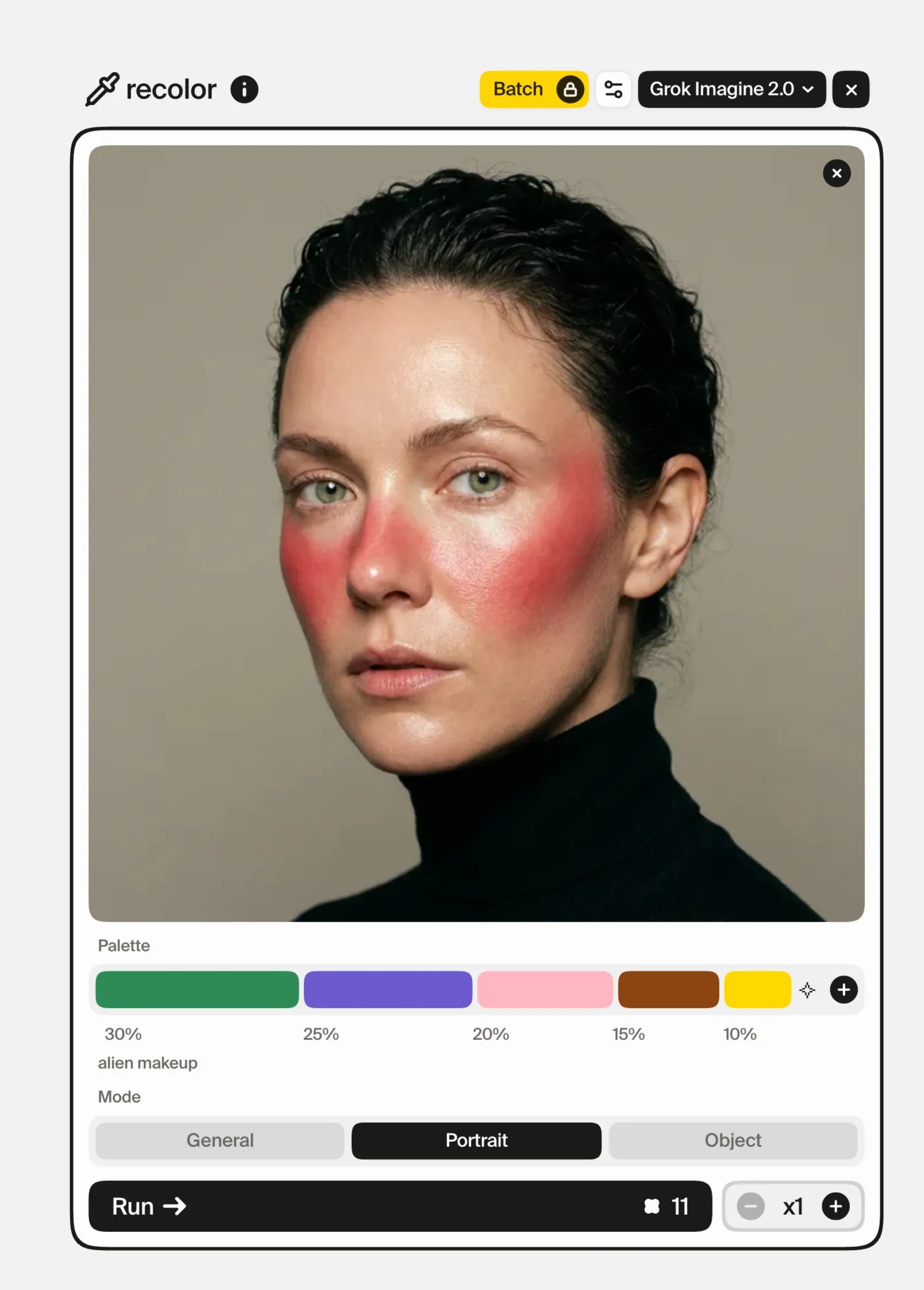
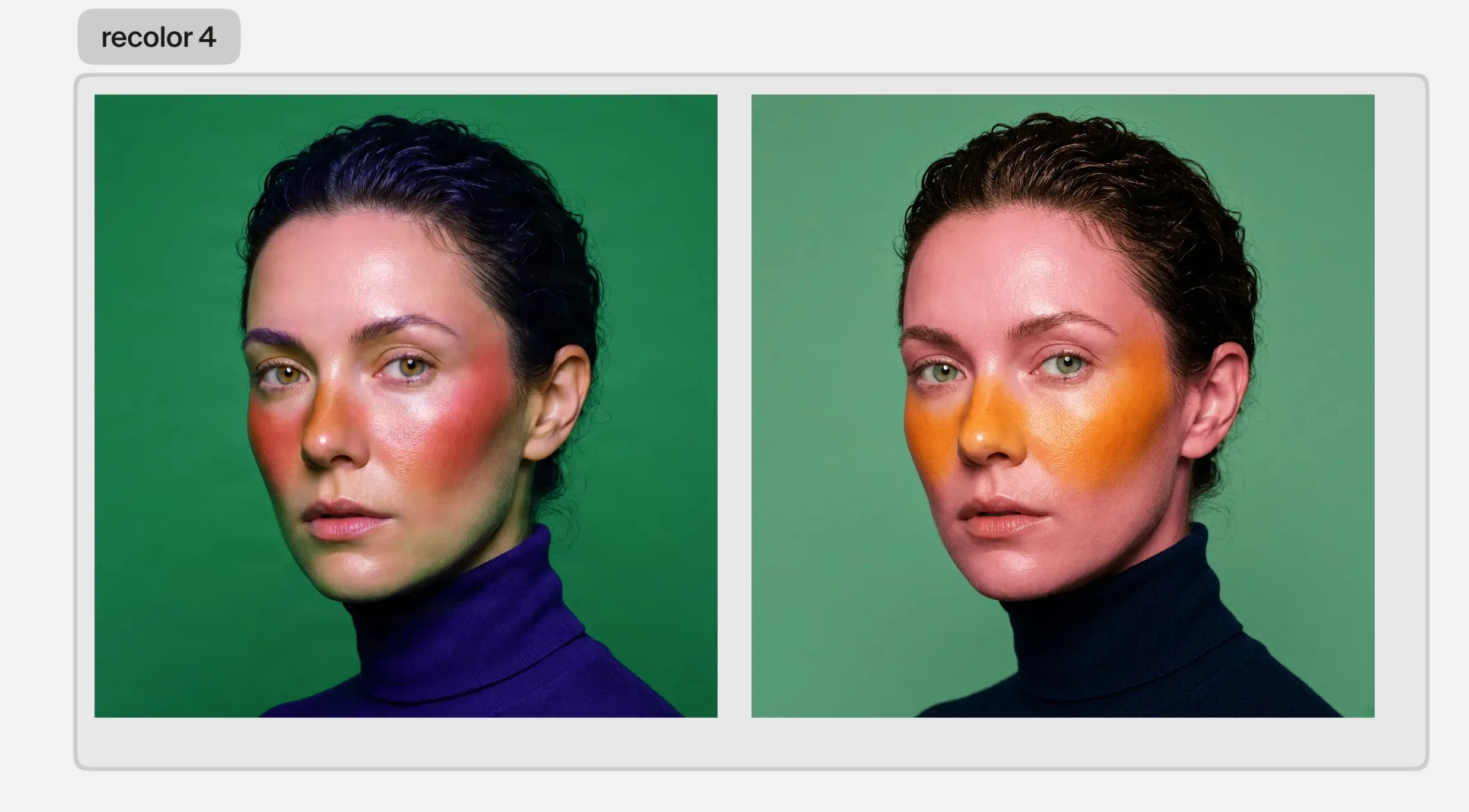
For a portrait, begin with a palette that describes the intended look. The example starts with the words “alien makeup”, which gives green, violet, pink, brown and yellow. Run Recolor in Portrait mode, then compare the options side by side.
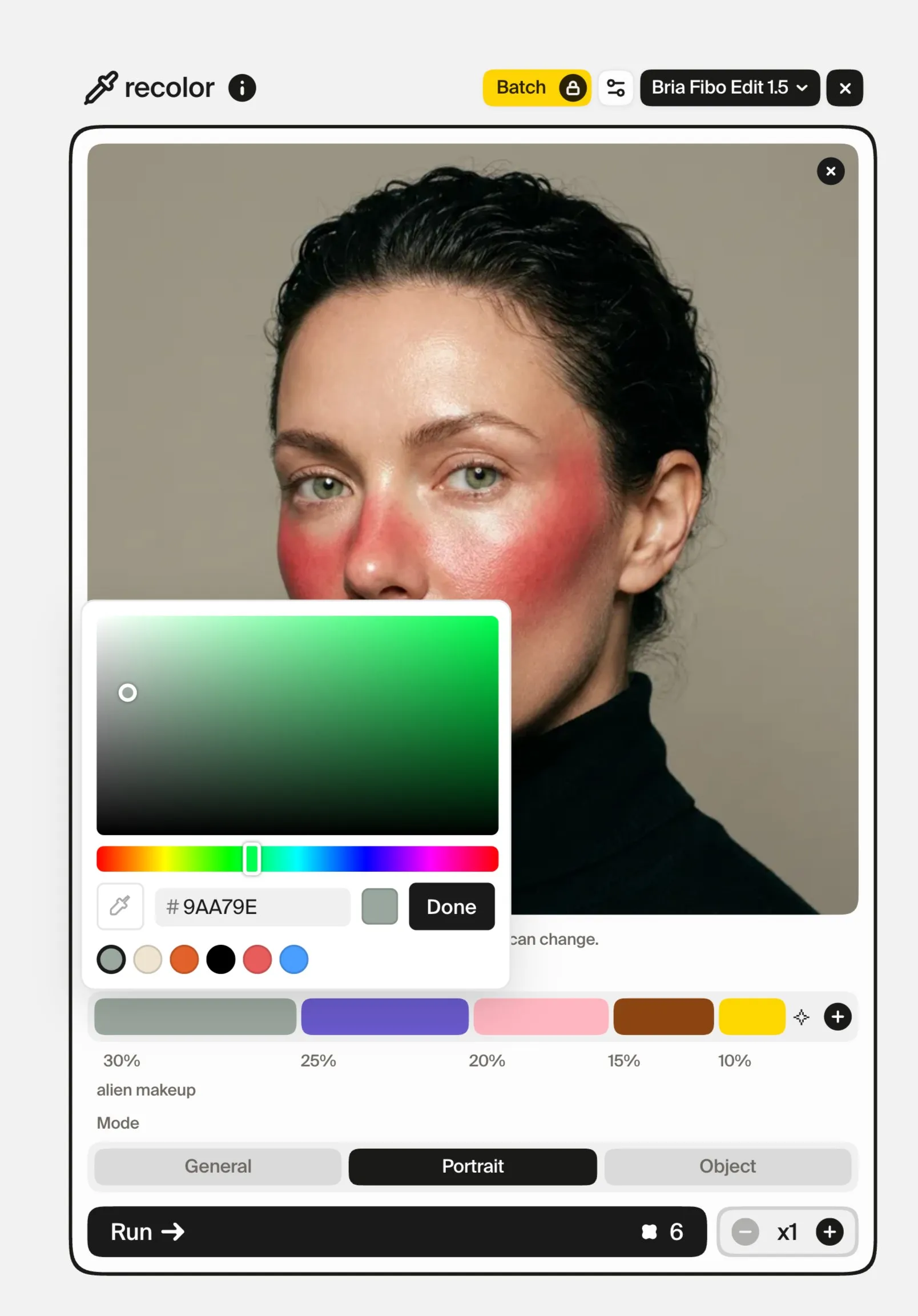
Portrait mode offers two models, Grok Imagine 2.0 and Bria Fibo Edit 1.5, and they interpret the palette differently. Grok turned the blush a saturated orange and the backdrop green; Bria kept the blush warm red and carried the violet into the hair and the turtleneck. Bria also warns on the card that it draws people anew, so a face can change. Use that difference to choose how far you want to push the image, rather than treating one result as automatically better.
If the background competes with the face, edit a swatch to a more muted color and label it “background,” then run another version. Check the face, hair, lighting and background together before selecting a result.
04 / Reuse
Reuse the palette in a compatible tool
Keep the selected palette on the canvas after recoloring. You can use it as a shared color input when moving into another tool that accepts palettes. In image-gen, text-to-image mode with Recraft v4.1 Flash has a Palette field: drag a palette from the canvas onto its bar, or write one from words. The example writes “lemon cake with coffee” for a café poster.
Reusing that input gives the next image a common color direction. It does not guarantee identical rendering across models, or preserve a character, material or composition. Compare the images together and refine the ones that drift from the direction you want.
What should you check before using the result?
- Color placement: Did the intended colors reach the subject, background or named area?
- Image changes: Did the process also alter facial features, material, texture, lighting or details you wanted to keep?
- Consistency: Does the selected result work beside the other images in the project? A shared palette is one part of a visual style, alongside composition, typography and subject treatment.
For brand work, verify the finished colors against your requirements. This workflow is useful for exploration and art direction; the examples do not establish exact color matching or pixel-level preservation.
See Recolor in action
The optional demonstration below shows palette creation, object and portrait recoloring, and palette reuse. You can follow the complete workflow from the steps above without watching the video.
Sources and methodology
The pictures in this guide were made in Plnty with the tools and settings shown on each card; the video is Plnty’s earlier Recolor demonstration. Available models and controls may change.
About the author

Try one image in two color directions
Choose one source image and make two palettes: one close to its current mood and one that deliberately changes it. Run both, compare the results with the original, then refine a single swatch or color label in your preferred direction.